Overview
Screen Layout
The main interface of Stage Cue is clean and straightforward:
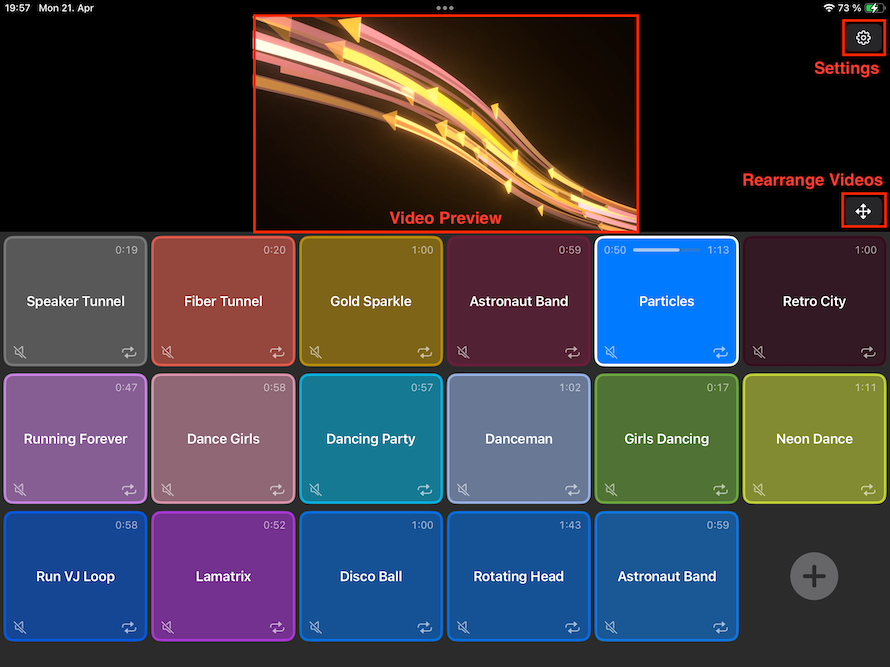
The screen is divided into two sections: a top section for preview and controls, and a bottom section for your video buttons.
The top section features a preview area that shows you what is currently displayed on the external screen.
A progress bar in the preview area lets you jump to any point in the video while it keeps playing.
- On iOS, Stage Cue automatically detects connected external screens and uses them for full-screen video playback.
- On macOS, you can open as many video windows as needed using Cmd+N or by selecting New Video Display from the File menu. These windows can be freely arranged across your screens.
In the top-left corner, you'll find the button to access the app's settings.
Next to it is the button, which puts the app into Rearrange Mode. In this mode, you can drag and drop video buttons to change their order. The lower half of the screen turns blue to show that rearrange mode is active.
To add a new video or image, tap the large button in the lower half of the screen. Files can be imported from your device's storage or directly from the photo library. Each configuration can hold up to 128 buttons, and you can switch between an unlimited number of configurations in the app's settings.
There are two more ways to bring media into Stage Cue:
- Drag & drop: Drag video or image files from another app — for example the Files app or the Finder — onto the Stage Cue window. A button is created for each file you drop.
- Open With: From any app that can share files, choose Open With (Open in on iPhone and iPad) and pick Stage Cue. The file is imported and added to your current configuration. Only one file can be imported this way at a time — if you select several files and send them to Stage Cue, just one of them is imported. To add several files at once, use drag & drop instead.
Buttons
Each video or image is represented by a customizable button. Video buttons show the following information at a glance:
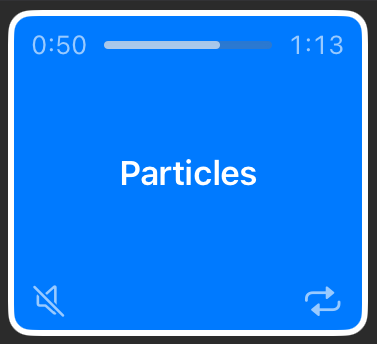
- Top Right: The total length of the video. When the video is playing, you'll also see the current playback time and progress.
- Center: The video title, which you can edit in the video's settings.
- Bottom Left: A mute indicator , shown only if the video is muted.
- Bottom Center: The MIDI trigger assigned to this video, shown only if one has been set.
- Bottom Right: The current playback mode (e.g. stop (no icon), pause , loop , play next or background ).
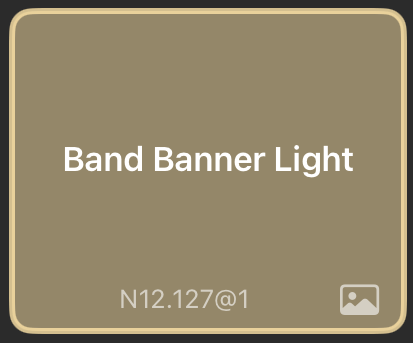
Image buttons show only the title and any assigned MIDI trigger. They are identified by a icon in the lower right corner:
Tap a video button to show or hide its image.
Press and hold a button to open its settings.